
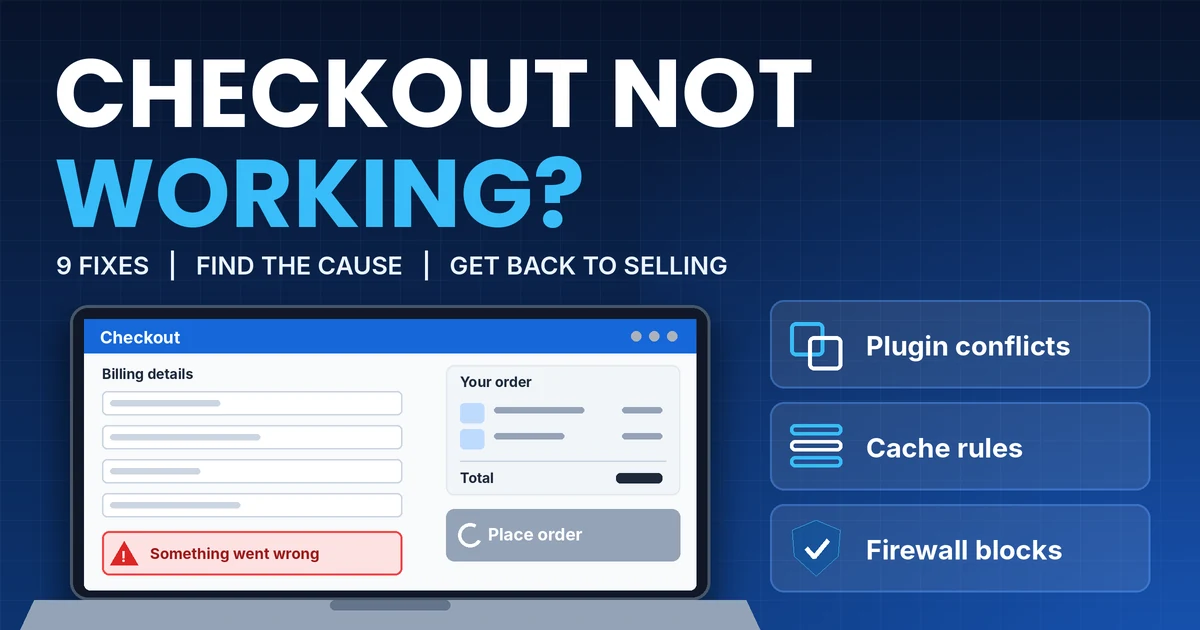
A broken checkout is the most expensive WooCommerce problem there is: customers are ready to pay and cannot. The cause is usually one of a handful of things, and working through them in the right order finds it quickly.
This guide is part of my wider WooCommerce troubleshooting guide. If your checkout is down right now and every hour costs you orders, skip to the end and get help.
First, work out which symptom you have
- The checkout page is blank or shows an error: start with fixes 1, 4 and 9.
- The Place Order button does nothing, or the spinner never stops: start with fixes 3, 5 and 8.
- “There are no payment methods available”: go straight to fix 7.
- It works for you but not for customers: start with fixes 2 and 8. Logged-in admins often bypass caches and firewall rules that customers run into.
- It broke after an update: start with fixes 3, 4 and 6.
Before you start
Take a backup, or work on a staging copy of the site. Test in a private browser window so you see what a customer sees, and make sure you have a way to place a test order, such as a gateway in test mode or a bank transfer method.
Fix 1: Check the Checkout page is assigned and has the right content
Go to WooCommerce → Settings → Advanced and look at the Checkout page setting. Make sure it points to the right page, and that the page contains the Checkout block or the [[woocommerce_checkout]] shortcode. A page that was deleted, duplicated or rebuilt with a page builder can break this link without any visible error.
Fix 2: Exclude checkout from every cache
Cart, Checkout and My Account pages must never be cached. Check the exclusion settings in your caching plugin, your host’s server-level cache and your CDN, and clear all of them afterwards. This is the most common reason a checkout works for you but not for customers, because logged-in admins are often served uncached pages.
Fix 3: Run a plugin conflict test
Install the free Health Check & Troubleshooting plugin and switch on Troubleshooting Mode. It disables plugins and switches to a default theme for your session only, so customers are not affected. Enable WooCommerce, test the checkout, then switch plugins back on one at a time. The checkout will break again when you enable the one at fault.
Plugins that commonly interfere with checkout include optimisation and minification plugins, security plugins, checkout field editors, discount and upsell plugins, and payment add-ons.
Fix 4: Check for outdated template overrides and test a default theme
Go to WooCommerce → Status and look at the Templates section. If your theme or a child theme overrides WooCommerce checkout templates, an out-of-date override can break checkout after a WooCommerce update. If Troubleshooting Mode with a default theme fixes the problem, update or remove the override, or ask the theme developer for a compatible version.
Fix 5: Look for JavaScript errors
Open the checkout page, press F12 and click the Console tab. Reload the page and look for red errors. An error that names a specific plugin or theme file points you straight at the culprit. Errors mentioning blocked requests or failed network calls point towards fix 8.
Fix 6: Try the classic checkout instead of the block checkout
Some plugins and payment gateways are not compatible with the block-based Checkout. To test, create a temporary page containing the [[woocommerce_checkout]] shortcode and assign it as the Checkout page under WooCommerce → Settings → Advanced. If checkout works on the classic version, a plugin is not compatible with the block checkout. Update it, replace it or ask its developer for support. Whether you keep the classic version depends on your plugins and WooCommerce’s current guidance.
Fix 7: Check payment methods and gateway settings
If customers see “There are no payment methods available”, go to WooCommerce → Settings → Payments and check that at least one method is enabled. Then check each method’s own settings:
- It supports the customer’s country and your store currency.
- The minimum or maximum order amount is not excluding the order.
- Test and live mode keys are not mixed up.
- The gateway plugin is up to date.
The gateway’s own log, under WooCommerce → Status → Logs, often shows the exact error.
Fix 8: Check firewalls and security rules
Checkout relies on background requests to your site. Security plugins, Cloudflare rules, bot protection and host-level firewalls can block them, which leaves customers with a spinner that never stops or a button that does nothing. Look at the firewall logs for blocked requests around the time a test order failed. Temporarily relaxing a rule, or allowing the blocked request, will confirm the cause. If the block is at host level, send your host the time of the failed attempt and ask them to check.
Fix 9: Check SSL, the site address and server errors
- Mixed content: an HTTPS page loading HTTP resources can stop scripts working. The browser console from fix 5 will show warnings.
- Site address: in Settings → General, the WordPress Address and Site Address should match, including www or non-www.
- Server errors: check your host’s PHP error log, or enable WordPress debug logging, for fatal errors during checkout. WooCommerce recommends at least 256 MB of memory, and your PHP version must be supported by WooCommerce and every active plugin.
Still not working?
Get help sooner rather than later if:
- Your checkout has been down for hours and you are losing orders.
- You have no backup, or are unsure how to restore one.
- You find signs of a hack, such as unknown admin users, spam redirects or files you did not change.
- You have worked through all nine fixes without success.
Frequently asked questions
Why does my WooCommerce checkout work for me but not for customers?
Usually because of caching or a firewall rule. Logged-in administrators often bypass both, so you see a working page while customers do not. Check fixes 2 and 8.
Why does the checkout page keep loading and never finish?
The checkout is waiting for a background request that is failing or blocked. The usual causes are a JavaScript error, a plugin conflict or a firewall rule. Check the browser console and run the conflict test.
Is it safe to test a different checkout page on a live store?
It is safer on a staging copy. If you must test live, do it at a quiet time, make the change reversible, and note the original Checkout page setting so you can restore it.
Need a hand?
If your checkout is broken and you would rather not troubleshoot it alone, send me the website address and a short description of what customers see. I will tell you what I recommend before you commit to anything, and I usually reply within 24 hours.
Describe your checkout problem · See my WooCommerce help service · Back to the WooCommerce troubleshooting guide